Google Cloud DMS enables minimal-downtime disk shrinking for SQL Server
Engineers can right-size storage footprints by replicating workloads to smaller instances rather than taking lengthy native maintenance windows.
In many production environments, database storage only moves in one direction: up. Features like Cloud SQL automatic storage increase are essential for preventing out-of-space outages during unexpected traffic spikes or large batch imports. Similarly, over the lifecycle of an application, you might archive historical records or purge obsolete data to reclaim space.
When data is deleted, SQL Server marks freed space inside your data files (.mdf,.ndf) as reusable for future writes; similarly, log truncation frees up space within transaction log files (.ldf). However, the database files themselves continue to hold their peak used space unless AUTO_SHRINK is configured — a setting that is generally not recommended in production due to severe index fragmentation and performance overhead.
With a manual shrink operation on the database files using DBCC SHRINKFILE, you can release that unused space from SQL Server files back to the underlying disk. Even after shrinking the database files, though, the Cloud SQL persistent disk remains at its peak allocated capacity. If you do not expect your database to grow back into that allocated disk space anytime soon, you should consider shrinking the disk itself to reduce ongoing storage costs — especially in scenarios such as:
- After major data archiving or purging: You have permanently moved historical data to cold storage or BigQuery and your active dataset is now a fraction of its peak size.
- Recovering from one-time storage spikes: A runaway transaction, large data migration, or temporary staging load triggered storage auto-increase, leaving you paying for terabytes of provisioned disk capacity you no longer need.
- Post-refactoring or schema optimization: You have split tables out of a monolithic database into separate services, dropped large unused indexes, or applied data compression.
You can monitor the following key Cloud SQL metrics in Cloud Monitoring to identify whether your provisioned disk quota significantly exceeds actual disk usage, indicating an opportunity for disk shrinking:
database/disk/bytes_used: Tracks the actual amount of disk space currently consumed by your database files and logs.database/disk/quota: Represents the total provisioned disk capacity allocated to your instance.
Cloud SQL provides a built-in storage shrink feature to reclaim this unallocated disk space, which works well when your workload can tolerate a planned maintenance window. However, native disk shrinking requires instance downtime proportional to the total allocated disk size — which can mean hours of offline maintenance for multi-terabyte drives.
If your production SLAs cannot accommodate extended downtime, Database Migration Service (DMS) offers a minimal-downtime alternative. By continuously replicating your databases to a newly provisioned Cloud SQL instance with a smaller, right-sized disk, you can reclaim unused storage while your application stays online — requiring only a brief cutover window.
How DMS works under the hood: Replication between Cloud SQL for SQL Server instances
To leverage DMS effectively, it helps to understand its underlying replication mechanism. When migrating between Cloud SQL for SQL Server instances, DMS coordinates a synchronization process similar to native SQL Server log shipping.
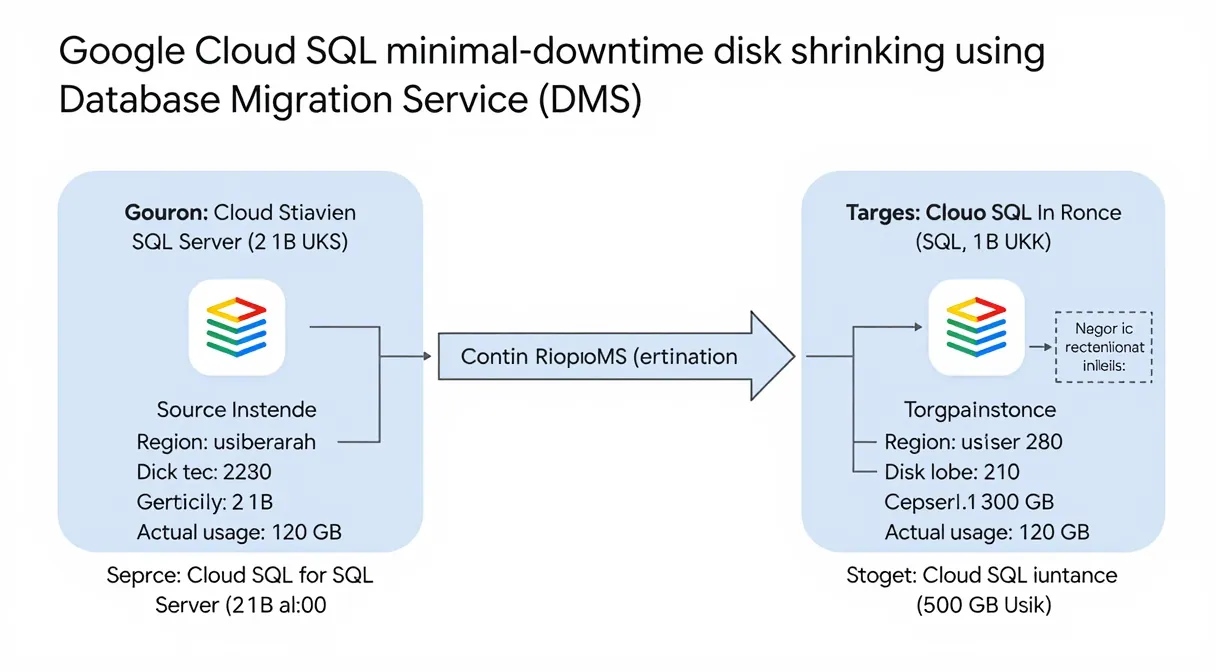
- Initial full backup: It captures an initial full backup (.bak) of the selected user databases and restores them on the target instance.
- Continuous log backups: It continuously captures and applies transaction log backups (.trn) to keep the target instance synchronized in near-real time.
Because synchronization occurs at the user database level, objects residing outside of it—such as logins, linked servers, and SQL Server Agent jobs—are not automatically replicated to the standby instance. Consequently, server-level objects must be migrated manually.
Disk shrinking with minimal downtime
Using this continuous replication pipeline, you can reclaim unallocated storage without taking a lengthy maintenance window. Instead of shrinking the existing disk in place while the instance is offline, you migrate your workload to a newly provisioned Cloud SQL instance with a right-sized disk while your production application remains online.
The DMS disk shrink workflow
- Provision a new target instance with a smaller, appropriately sized disk (leaving sufficient headroom for transaction logs and future data growth).
- Start a continuous DMS job using your existing Cloud SQL instance as the source.
- Let replication catch up while your production application runs uninterrupted.
- Perform a brief cutover: Stop application traffic, let the final transaction log apply, promote the target instance in DMS, and repoint your application.
Pre and post-cutover essentials: Going beyond database replication
As shown in the comparison above, because DMS migrates your workload to a new instance at the user-database level, a smooth cutover requires migrating your server-level objects and user mappings alongside your data. Let's look at the essential pre- and post-cutover steps to include in your runbook.
Pre-cutover preparation: Migrating server-level objects
Because DMS operates at the user database level, server-level objects are not automatically replicated. You will need to create them manually in the destination instance before the cutover.
- Script out logins from the source using
sp_help_revloginand recreate them on the target instance. - SQL Server Agent jobs & Server-Level objects: Because DMS replicates databases rather than server instance state, objects outside user databases must be scripted from the source and deployed to the destination Cloud SQL instance. In SQL Server Management Studio (SSMS), connect to your source instance, navigate to the object in Object Explorer, right-click and select
Script [Object] as > CREATE To > New Query Window / File: - SQL Server Agent jobs (
SQL Server Agent > Jobs): Inspect generated scripts to ensure job steps do not reference on-premises file paths or unsupported OS dependencies. - Linked servers (
Server Objects > Linked Servers): Follow the exact same scripting approach. Ensure you enable thecloudsql.linked_serversdatabase flag on your Cloud SQL instance before deploying. - Extended events (
Management > Extended Events > Sessions): Follow the same scripting approach. - For TDE enabled instances, you will need to export the TDE certificate from source and import the TDE certificate to destination before.
- Instance Configurations (such as database flags, Active Directory, Entra ID configurations etc): These must be manually configured on the destination instance to exactly match the source settings.
- If using Polybase you will need to re-encrypt DMK for the database-scoped credentials to function correctly.
Post-cutover remediation: Resolving orphaned database users
Database users mapped to SQL Server logins that are either absent or misconfigured on a server instance are unable to authenticate. These are termed orphaned users. Because logins created on the destination instance will possess unique Security Identifiers (SIDs) that do not match the source SIDs preserved in your migrated databases, users will be orphaned by default. Addressing this requires manual re-mapping once the target database is brought online following the cutover.
- Detecting & re-mapping orphaned users: While using sp_help_revlogin preserves SIDs during login migration, creating logins on the destination instance via alternative methods generates new server-level SIDs. Because these differ from the source SIDs retained in the DMS-restored user databases, database users become orphaned after cutover and require re-mapping.
- Detect orphaned users: Connect to each destination user database and run the diagnostic query from Microsoft's official Troubleshoot Orphaned Users Guide:
- Fix orphaned users (
ALTER USER): For each unlinked database user returned by the query, execute the following statement inside the context of that database to cleanly re-map the principal and its permissions to the new Cloud SQL server login:
Summary and next steps
DMS is more than a one-time bridge from on-premises environments into Google Cloud — it is a versatile tool for day-two operations in the Cloud SQL engineer's toolkit. When strict production SLAs prevent you from taking lengthy maintenance windows for a native disk shrink, DMS provides a reliable, managed replication pipeline to right-size your storage footprint and reduce infrastructure costs with minimal downtime.
To get started with configuring Cloud SQL for SQL Server as a DMS source, explore the official documentation. And if you're new to running SQL Server on Google Cloud, check out the Cloud SQL for SQL Server introduction.